Wopisanje
Backup, Restore, Staging, Cloning & Migration for WordPress
WP STAGING is an all-in-one backup & restore, duplicator, staging, and migration plugin for WordPress, built for professional workflows with 100% unit-tested code coverage, thousands of automated tests, and extensive end-to-end testing across supported PHP versions.
Create a full backup or an exact clone of your website in minutes. Use it to test plugin and theme updates safely, restore your site when needed, migrate WordPress to another server, or build a staging copy before making changes.
WP STAGING is developed in Germany and designed for agencies, developers, and businesses that need reliable WordPress backup, staging, restore, and migration workflows.
WP STAGING | PRO also includes advanced workflows such as Remote Sync, which lets you pull a WordPress site securely from one server to another using an API key, and WP STAGING CLI, which can turn a WP STAGING backup into a local Docker-based development site.
All data stays on your server unless you choose a transfer or remote storage workflow. WP STAGING is designed for speed, reliability, and low-resource environments, including shared hosting.
WP STAGING automatically performs search and replace for links and paths during cloning, backup, restore, and migration workflows.
This staging and backup plugin can clone your website quickly and efficiently, even if it is running on a weak shared hosting server.
WP STAGING FREE – BACKUP & STAGING FEATURES
- Clone the entire production site into a subdirectory like example.com/staging-site.
- High-performance backup and cloning, even for websites with very large databases.
- Backup scheduling with automatic daily backups.
- Easy to use: create a clone or backup in one click.
- Efficient background processing without slowing down your website.
- No Software as a Service and no external account required.
- All your data stays on your server. Your data belongs to you only.
- No server timeouts on huge websites or weak servers.
- Fast backup, clone, and restore workflows depending on site size and server resources.
- Use the clone as part of your backup and update strategy.
- Only administrators can access the cloned or backup website.
- SEO-friendly staging sites with login protection and no-index handling.
- The admin bar on the staging / backup website is orange colored and shows when you work on the staging site.
- Extensive logging features.
- Supports Apache, Nginx, Microsoft IIS, and LiteSpeed Server.
- Every release passes extensive automated tests to keep the plugin robust, reliable, and fast.
- Fast and professional support team.
WP STAGING | PRO – BACKUP & STAGING FEATURES
The features below are available in WP STAGING | PRO.
- Remote Sync – Pull a WordPress site securely from one server to another.
- WP STAGING CLI – Turn a backup into a local Docker-based development site.
- Migrate and transfer WordPress to another host or domain.
- Push a staging website including plugins, themes, and media files to production with one click.
- Clone a backup or staging site to a separate database.
- Choose a custom directory for a backup or cloned site.
- Select a custom subdomain destination like dev.example.com.
- Define user roles for accessing the clone or backup site. This can be clients or external developers.
- Multisite support for migration, backup, and cloning.
- Schedule recurring backups by time and interval.
- Download and upload backups to another server for migration and transfer.
- Backup retention settings.
- Custom backup names.
- Email notifications if a backup cannot be created.
- Backup for WordPress multisites.
- Backup to Google Drive.
- Backup to Amazon S3.
- Backup to (S)FTP.
- Backup to Dropbox.
- Custom backup folder destinations for cloud storage providers.
- Priority support.
DOCUMENTATION
How to Backup and Restore WordPress
Backup and Restore WordPress
Backup & Transfer WordPress Site to Another Host
How to Migrate Your WordPress Site to a New Host
Remote Sync
Pull a WordPress Site from One Server to Another
Local Docker Development with WP STAGING CLI
WP STAGING CLI – Upgrade Now
All Backup Guides
All Backup Guides
Working with Staging Sites
Working with Staging Sites
FAQ for Backup & Cloning
FAQ for Backup & Cloning
Troubleshooting Backup & Cloning
Troubleshooting Backup & Cloning
WP STAGING BACKUP & CLONING TECHNICAL REQUIREMENTS & INFORMATION
- Works on latest version of WordPress
- Minimum Supported WordPress Version 3.8
- Cloning and Backup work on all webhosts
- No extra libraries required
- Backup & cloning supports huge websites
- Custom backup format is much faster and smaller than any tar or zip compression
- Backup & cloning works in low memory & shared hosting environments
SUPPORT
Screenshots
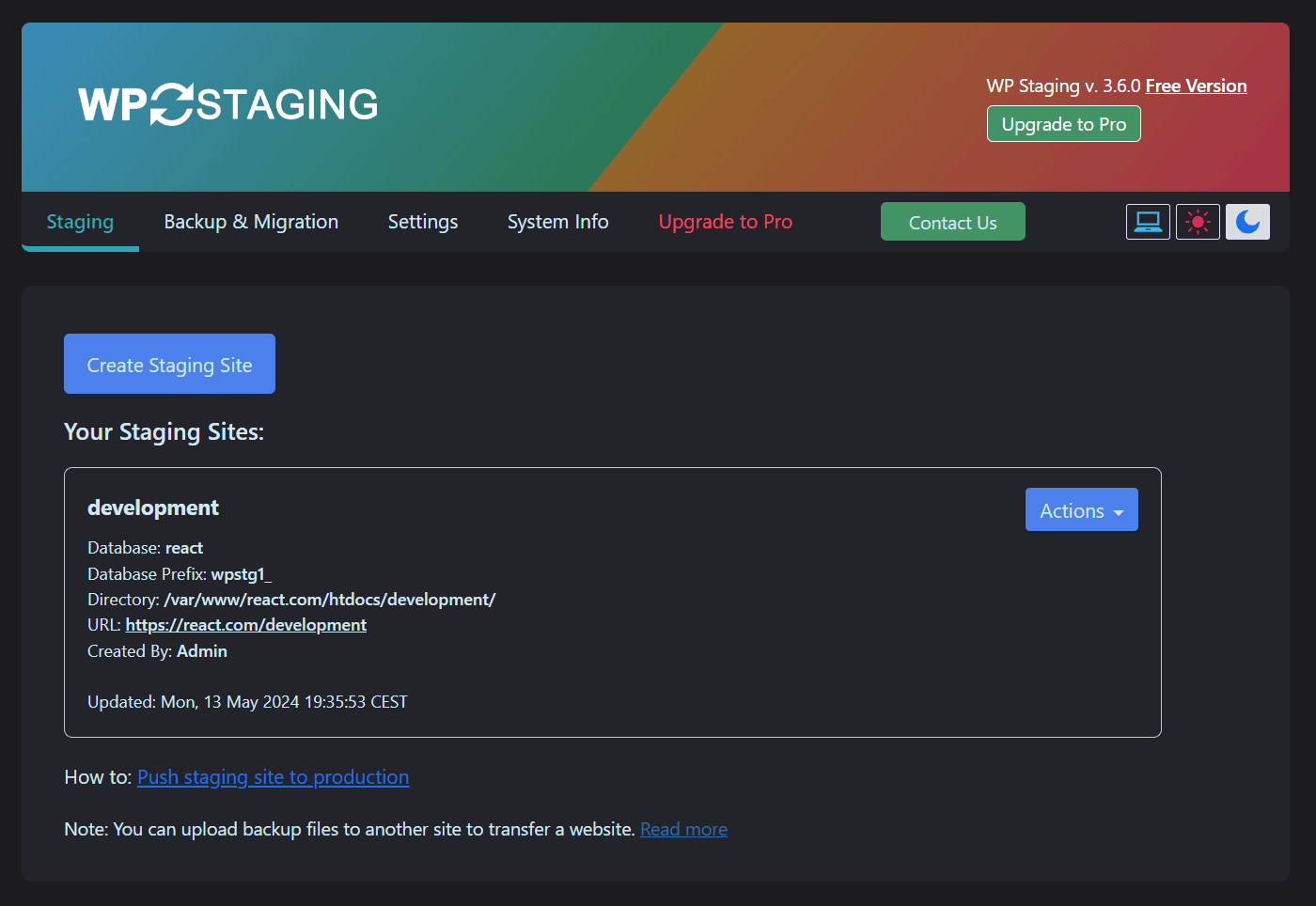
Create new WordPress staging / backup site (Dark Mode) 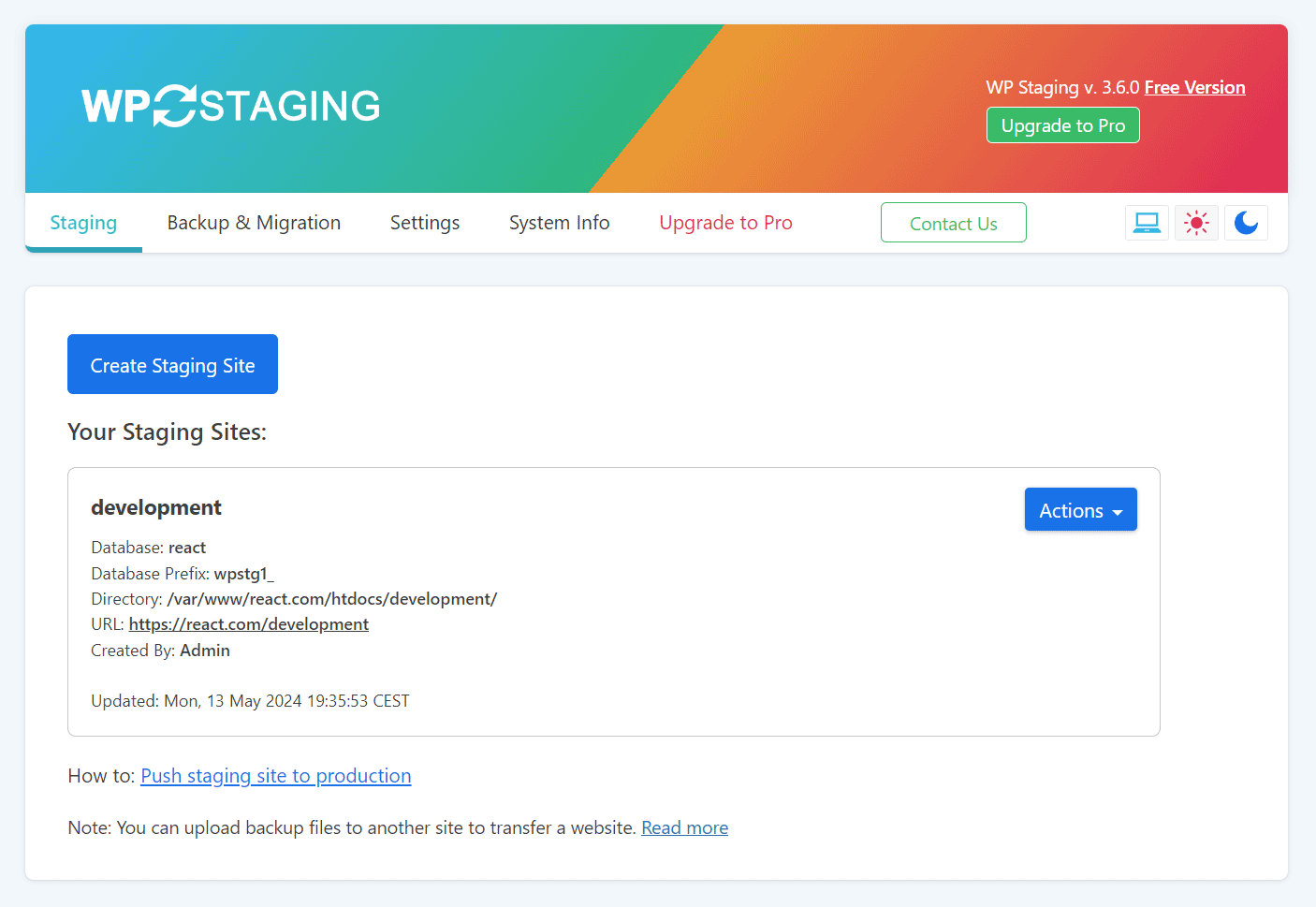
Create new WordPress staging / backup site (Lite Mode) 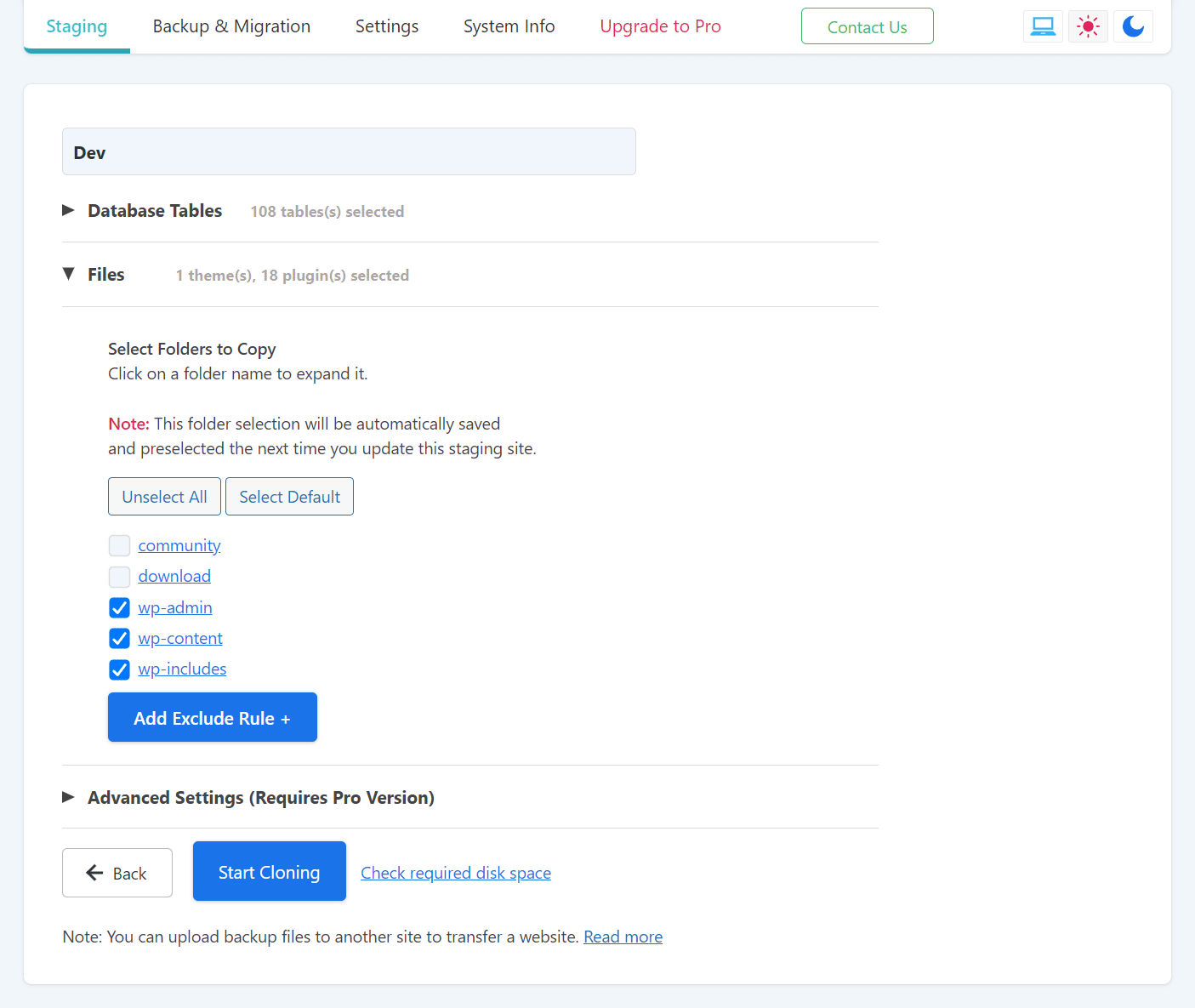
Select name for staging / backup site (Lite Mode) 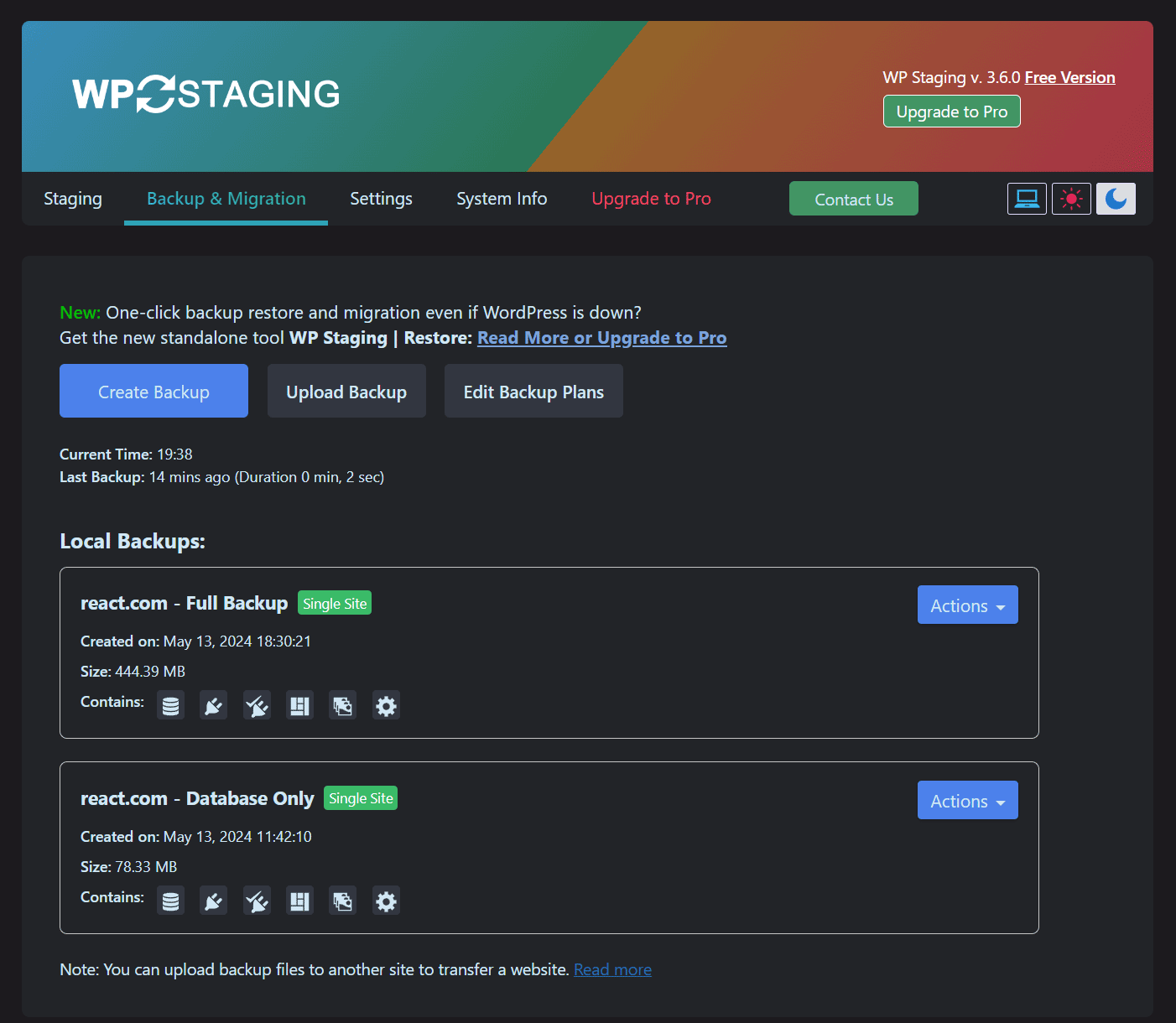
Create Full Site Backup (Dark Mode) 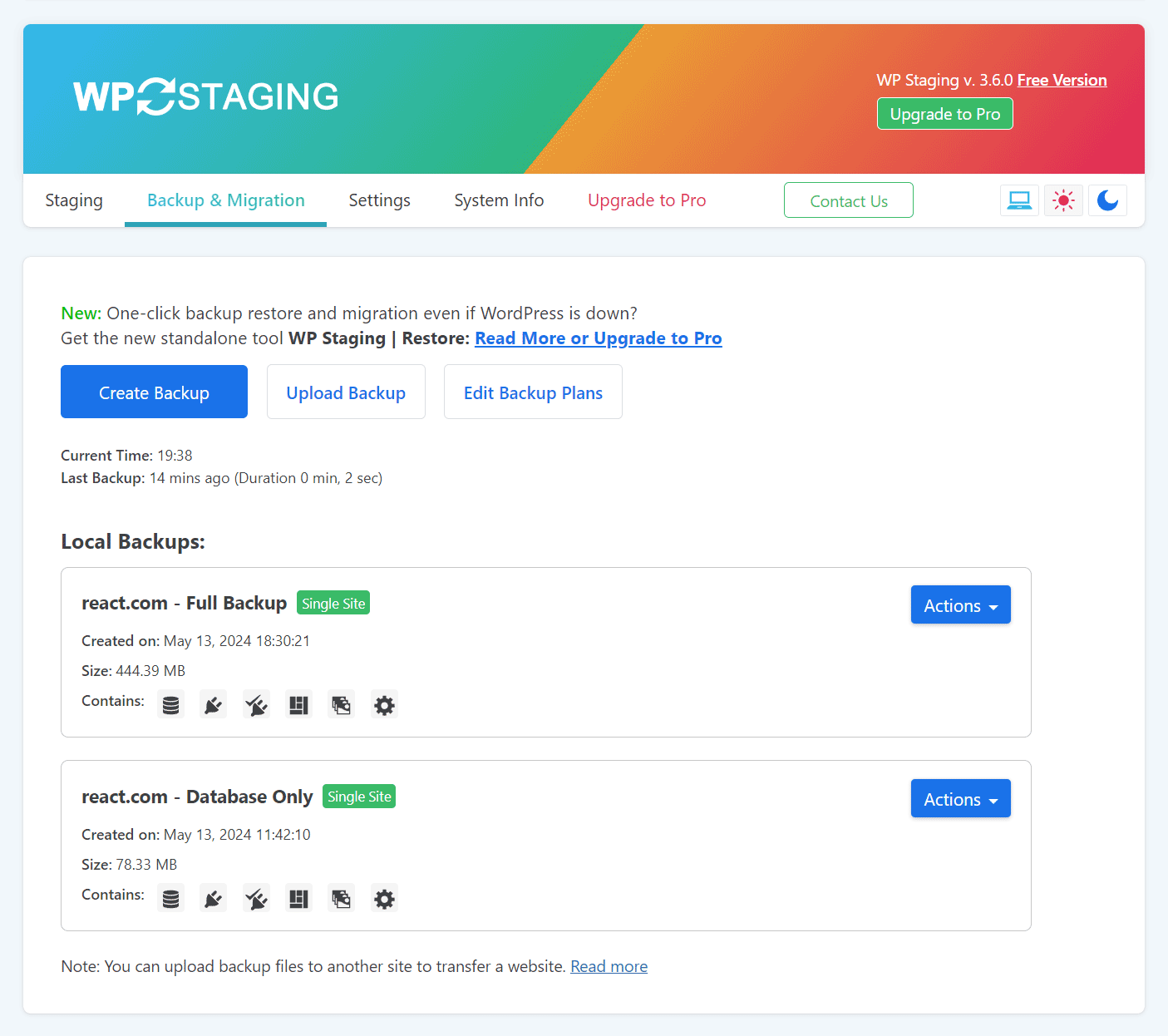
Create Full Site Backup (Lite Mode) 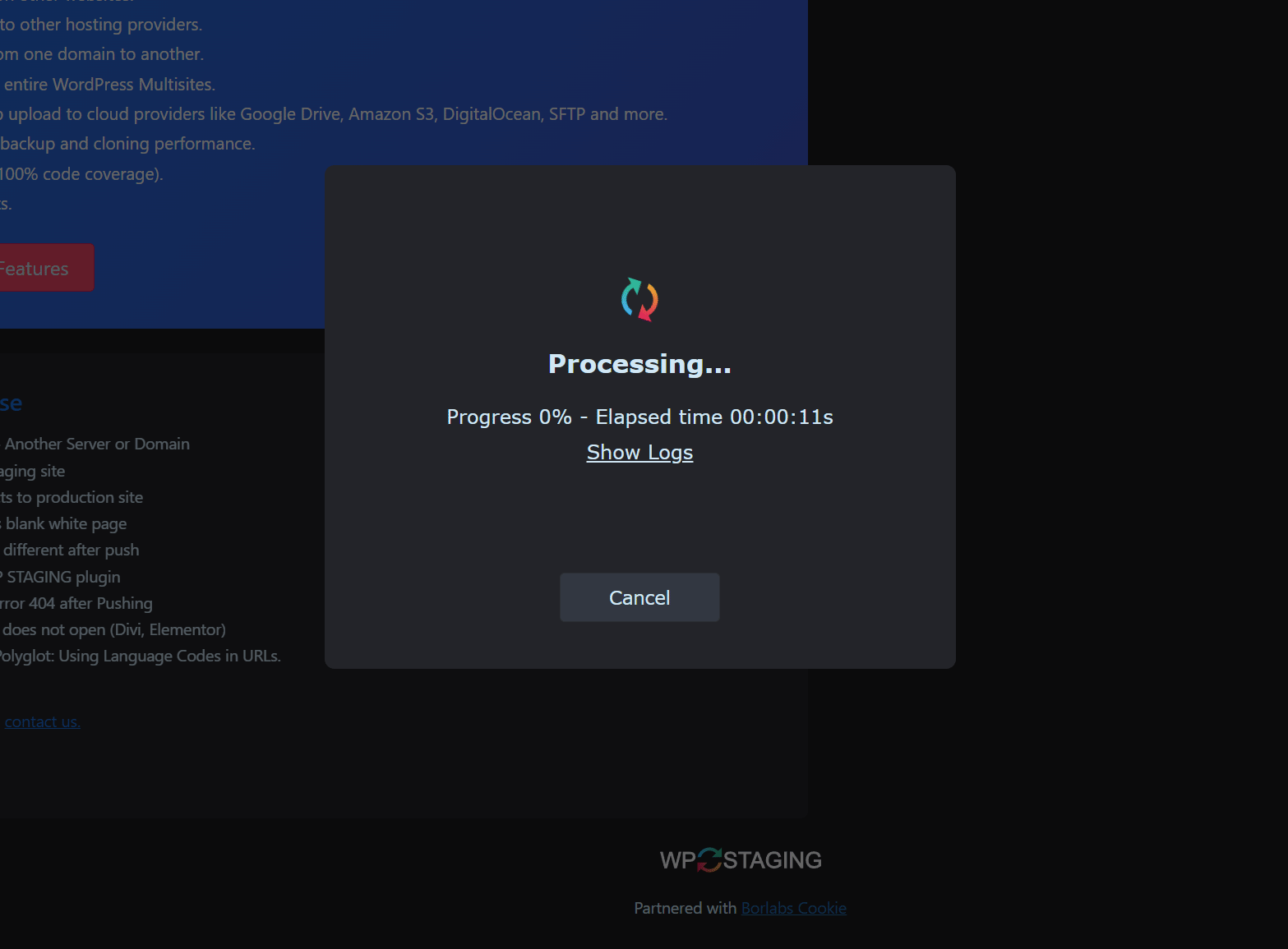
Cloning / backup processing (Dark Mode) 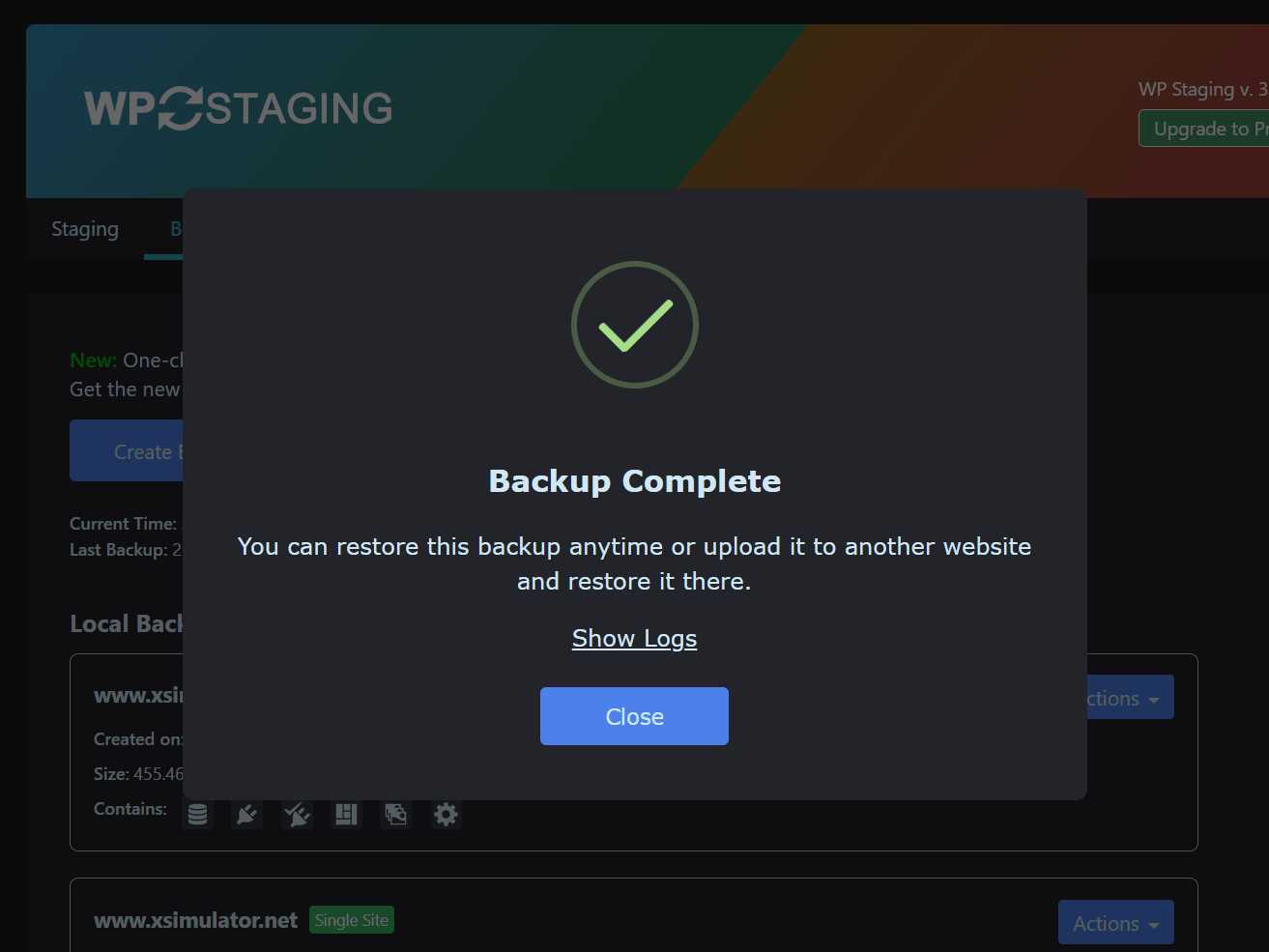
Backup Complete (Dark Mode) 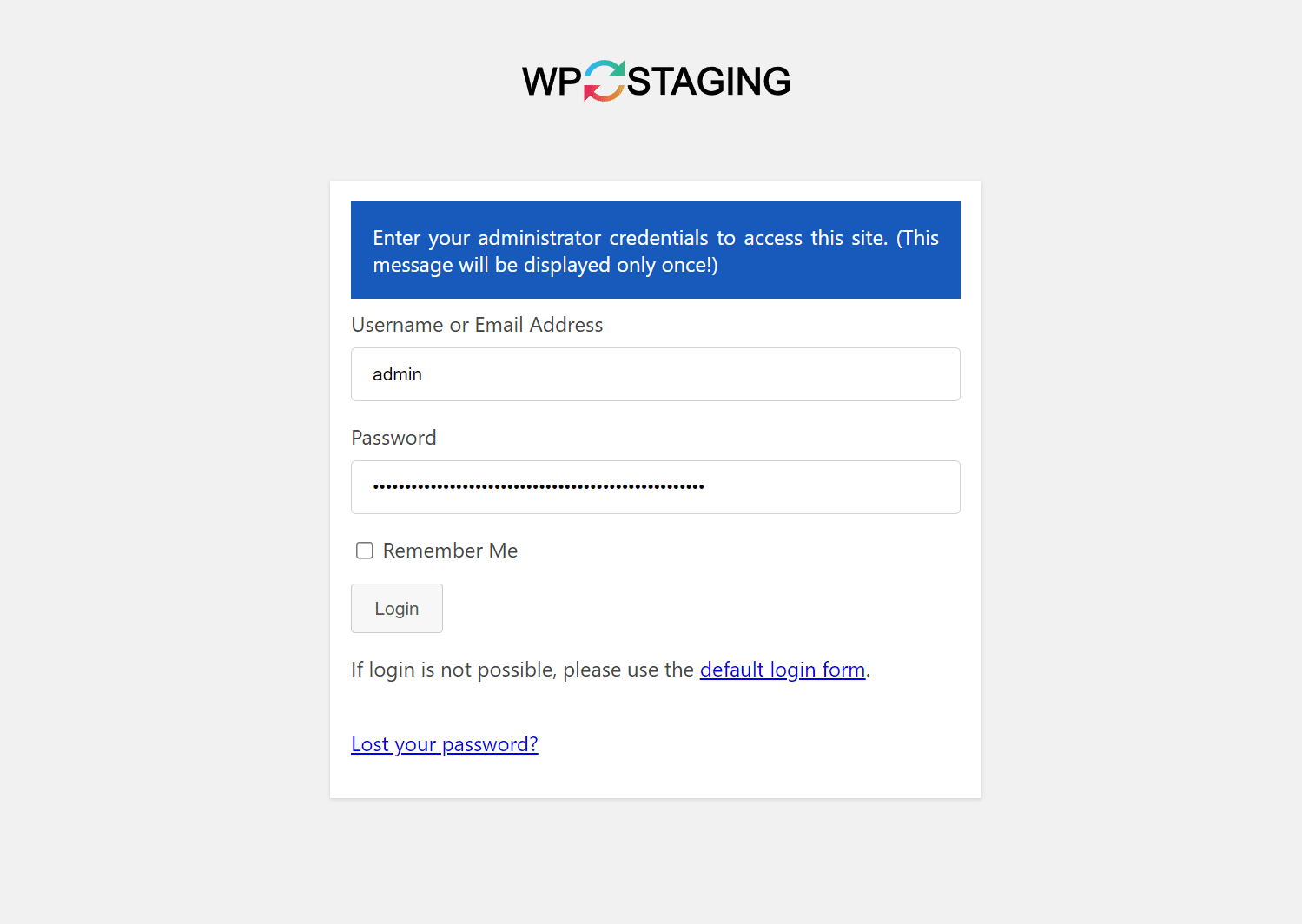
Login to staging site 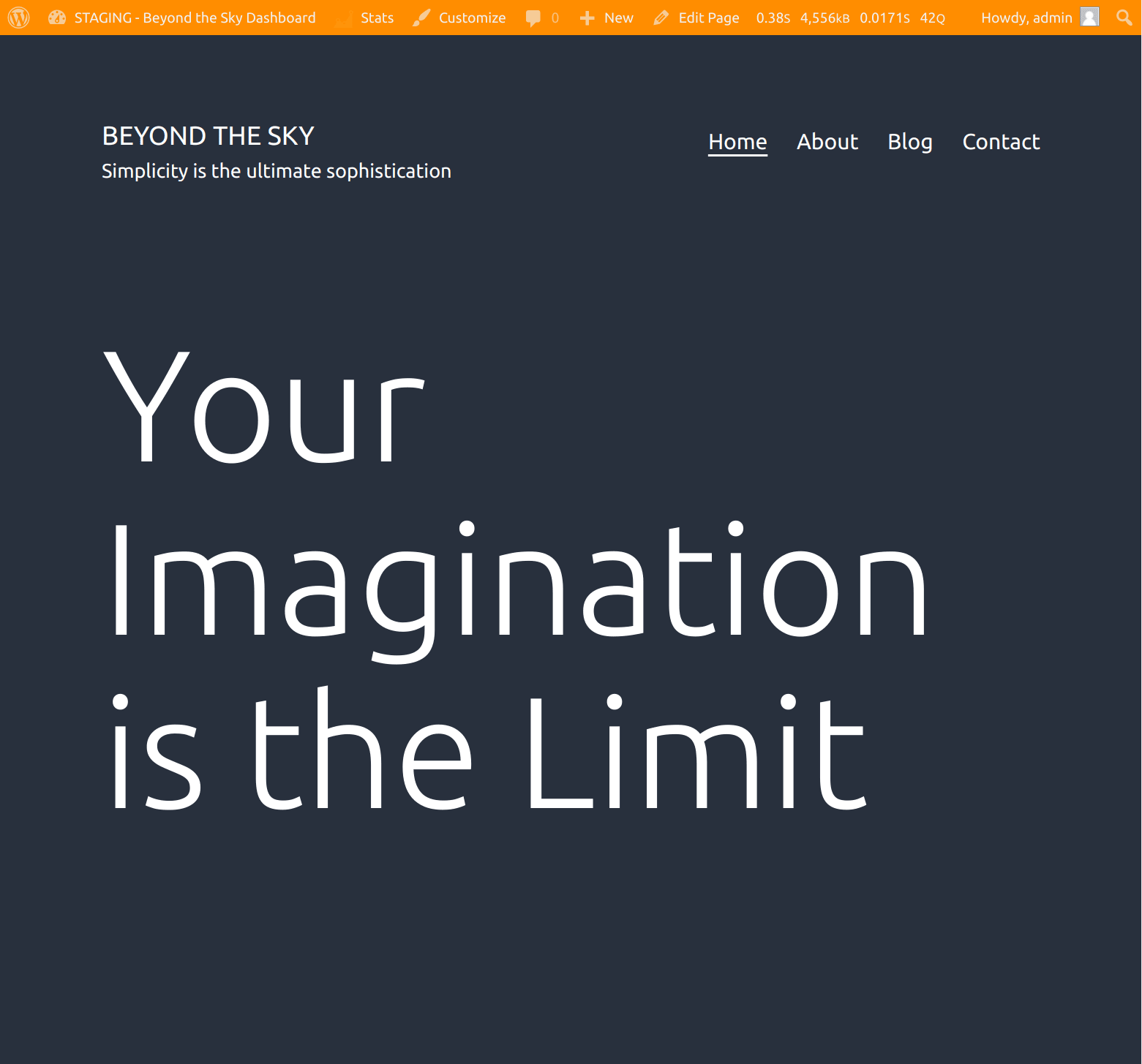
Staging demo site
Instalacija
Installation via admin plugin search
- Go to Plugins > Add new. Select „Author“ from the dropdown near search input.
- Search for „WP STAGING“.
- Find „WP STAGING – WordPress Backup, Restore & Migration“ and click the „Install Now“ button.
- Activate the plugin.
- The plugin should be shown below settings menu.
Admin Installer via zip
- Visit the Add New plugin screen and click the „Upload Plugin“ button.
- Click the „Browse…“ button and select the zip file of our plugin.
- Click „Install Now“ button.
- Once uploading is done, activate WP STAGING – WordPress Backup, Restore & Migration.
- The plugin should be shown below the settings menu.
FAQ
-
Why should I use a staging site and backup workflow?
-
Plugin updates, theme changes, and custom code should be tested before they reach your live site. A staging workflow lets you clone your production website, test changes safely, and keep a working backup ready in case something goes wrong.
Usually, it is best to run the staging site on an environment as close as possible to the production server. That is the best way to catch compatibility issues before they affect your live site.
WP STAGING combines backup, restore, staging, and migration in one workflow, so you can protect your live website, reduce downtime risk, and ship changes with more confidence.
-
Is WP STAGING a backup plugin?
-
Yes. WP STAGING started as a staging plugin and evolved into a full backup, restore, staging, and migration solution for WordPress.
Even the free version lets you create backups and restore them when needed. WP STAGING | PRO adds more advanced backup workflows, cloud storage destinations, migration tools, and developer-focused features.
-
How is WP STAGING different from other backup plugins?
-
WP STAGING combines backup, restore, staging, cloning, and migration in one workflow. While many backup plugins focus mainly on archive-based backups or simple migration, WP STAGING also helps you create a working staging copy, test updates safely, and restore your site when needed.
Some backup plugins focus mainly on creating backup archives, while WP STAGING also creates working staging copies for safer testing and rollback workflows. This is especially useful when you want production-like validation before pushing changes live.
Some backup plugins may not fully support custom tables in all scenarios. WP STAGING is designed to work reliably with staging workflows and custom table prefixes used by its own cloned environments.
WP STAGING | PRO also includes advanced workflows such as Remote Sync and WP STAGING CLI, which can turn a backup into a local Docker-based development site. That makes WP STAGING especially attractive for developers, agencies, and site owners who want more than a basic backup plugin.
-
How do I back up and restore a WordPress site?
-
After installing WP STAGING, go to the backup section in the plugin and create a full-site backup. You can then restore that backup if a plugin update, theme change, deployment, or unexpected issue breaks your site.
WP STAGING is designed to make backup and restore simple, even on shared hosting and large WordPress installations.
-
What is Remote Sync in WP STAGING Pro?
-
Remote Sync is a Pro feature that lets you pull a WordPress site securely from one server to another using an API key. Instead of manually exporting databases and copying files, you connect the two sites and start the sync from inside WP STAGING.
This is especially useful for agencies, developers, and site owners who want a faster and more reliable workflow for moving content between WordPress installs.
Learn more:
Remote Sync: Pull a WordPress Site from One Server to Another -
How can I turn a backup into a local Docker development site?
-
WP STAGING | PRO includes access to WP STAGING CLI, which can turn a WP STAGING backup into a local Docker-based WordPress site with one command.
This is ideal for debugging, QA, development, and reproducing client issues locally. It helps you create repeatable local environments without building custom Docker setups for every project.
Learn more:
WP STAGING CLI – Upgrade Now -
How do I migrate WordPress to another host or server?
-
WP STAGING | PRO includes migration workflows that help you move a WordPress website to another host, domain, or server.
If you want a guided step-by-step walkthrough, see:
How to Migrate Your WordPress Site to a New Host -
Why do I need a backup plugin at all?
-
Consistent website backups are the foundation of a robust disaster recovery strategy. They protect your website against failed updates, user mistakes, malware cleanup, hosting issues, hardware failures, software malfunctions, and data loss.
Backups should include website files, databases, user data, and configuration data. A combination of full backups and incremental backups can improve storage efficiency while keeping restore points current.
If your website generates leads, sales, traffic, or customer trust, regular backups are not optional. A reliable backup and restore workflow can save hours of downtime and expensive recovery work.
-
Can I activate permalinks on the staging site?
-
Permalinks are disabled on the staging site after the first cloning process.
Read this guide to activate permalinks on your staging site:
Activate Permalinks on the Staging Site -
I cannot log in to the staging or backup site
-
If you use a security plugin such as Wordfence, iThemes Security, All In One WP Security & Firewall, or a plugin that hides the default WordPress login URL, make sure you are running the latest version of WP STAGING.
If you still cannot log in, go to WP STAGING > Settings and disable WP STAGING extra authentication. Your admin dashboard will still remain protected.
-
Can I just use my local WordPress development system for testing and backup?
-
You can always test your website locally, but if your local hardware and software environment is not an exact clone of your production server, there is no guarantee that every aspect of your local copy will behave the same way.
Differences in PHP version, server stack, memory, CPU performance, and filesystem behavior can all lead to unexpected results on production. That is why staging on infrastructure close to production remains valuable.
WP STAGING | PRO also gives you a more advanced local workflow through WP STAGING CLI, which can turn a backup into a local Docker-based development site.
-
Is WP STAGING available in multiple languages?
-
Yes. WP STAGING is available in multiple languages, and several translations are already complete or nearly complete.
You can view translated plugin pages here:
English
French
German
Spanish
Croatian
Dutch
Finnish
Greek
Hungarian
Indonesian
Italian
Persian
Polish
Portuguese (Brazil)
Russian
Turkish
VietnameseIf you want to help improve translations, please get in touch with us through the support forum.
-
Can I give feedback for WP STAGING?
-
Yes. If something does not work as expected, please open a support request and describe the issue in as much detail as possible.
We continuously improve WP STAGING based on user feedback, real-world hosting environments, and developer use cases.
Open support:
WP STAGING Support Forum
Reviews


Sobustatkujuce a wuwijarje
„WP STAGING – WordPress Backup, Restore & Migration“ jo software wótwórjonego žrědła. Slědujuce luźe su pśinosowali k toś tomu tykacoju.
Sobustatkujuce


“WP STAGING – WordPress Backup, Restore & Migration” has been translated into 9 locales. Thank you to the translators for their contributions.
Translate “WP STAGING – WordPress Backup, Restore & Migration” into your language.
Interested in development?
Browse the code, check out the SVN repository, or subscribe to the development log by RSS.
Changelog
4.8.0
- New: Add analytic events logging for Backup Explorer. #4954
- New: Add filter configuration support for the standalone restore tool via JSON config file. #5051
- New: Add option to create remote sync profiles which allow one click remote sync process. #4668
- New: Add option to receive remote sync success notifications via emails and slack. #4668
- Enh: Add Remote Sync promo video composition (EN + DE) under promo-video/. #5088
- Enh: Add filter for custom search/replace in encoded database values (e.g. base64 JSON). #4931
- Enh: Added a notification on backup download to verify the downloaded file size. #1786
- Enh: Redesign remote sync flow to be smoother. #4668
- Enh: Remove deprecated wpstg.backup.restore.exclude_plugins filter. Use wpstg.backup.restore.exclude_paths instead. #4892
- Enh: Show „Not enough disk space“ error when backup file archiving fails due to a disk-full condition, instead of a generic write-failure message. #3034
- Fix: Add per-request cron integrity check that self-heals missing, orphaned, or wrong-recurrence WP Staging cron events (backup schedules, daily/weekly maintenance, queue processing) so scheduled backups keep running even when WP-Cron itself is broken. #5090
- Fix: Cron warning shows only when scheduled backups are actually failing. #5058
- Fix: Fixed edge cases that could cause some settings or backup information to load incorrectly, and improved validation and error handling in backup and staging workflows. #5070
- Fix: Improved backup reliability on some hosts by ensuring backup progress continues correctly between requests. #5112
- Fix: Preserve WP Staging Free plugin during backup restore when using Pro version. #4892
- Fix: Prevent background backups from processing the database twice. #5009
- Fix: Prevent fatal error and full-site crash when plugin files are missing or corrupted. #5074
- Fix: Reject empty token on /wpstg/v1/sse-logs REST route to prevent unauthenticated log-stream connections when no job is active. #5097
- Fix: SFTP connection test fails when run more than once. (Pro) #5029
- Fix: Show actual Remote Sync error in UI instead of generic failure message and identify which server caused it. #5011
- Fix: Skip optimizer copy when the destination (mu-plugins directory) is not writable. #4545
- Fix: Staging delete modal overflows viewport when staging site has many database tables. #5071
- Fix: Stored SFTP credentials, including SSH private keys, are now saved securely by default. #5048
- Fix: Undefined variable notice of jobId from AnalyticsServiceProvider. #1503
- Dev: Add logic to log generic analytic events. #4954
- Dev: Add translation-audit helper script to find orphaned msgids and missing translations across .po files. #5106
- Dev: Bump phpunit/phpunit, symfony/process, phpseclib/phpseclib, eslint, @typescript-eslint, and flatted dependencies. #5017
- Dev: CI release prepare seeds dist/newsfeed-{en,de}.json from dev/releases-history// when present, and skips newsfeed:generate-json regeneration in that case so manual edits to the EN newsfeed and translated DE newsfeed survive across re-runs and reach the deploy artifact. #5138
- Dev: Decouple general/ Playwright tests from staging GitHub workflows into dedicated basic_general, pro_general, and pro_thirdparty_general workflows. #5125
- Dev: Fix failing „Pro Integration“ test on CI for PHP 8.3+. #5082
- Dev: Fix syntax error in CI release prepare workflow that caused the post-commit „mark required checks“ step to crash. #5137
- Dev: Keep
fast-tests-passed/fast-tests-failedlabels across commits; let next test run swap them. #5087 - Dev: Refactor Staging Site e2e tests to be more robust and stable. #5077
- Dev: Remove binary .mo translation files from git to prevent merge conflicts. #5072
- Dev: Revert PHP 8.6 SplFileObject runtime detection until PHP 8.6 is officially released. #5115
- Dev: Skip AuthTempCertFileTest file permission check on Windows as it does not support Unix permissions. #5069
- Dev: Update dependencies related to building assets to reduce time taken to build assets. #4880
WP STAGING Backup & Cloning | Full changelog:
https://wp-staging.com/wp-staging-changelog